> ## Documentation Index
> Fetch the complete documentation index at: https://openlayer.com/docs/llms.txt
> Use this file to discover all available pages before exploring further.
# Track compliance across your workspace
> Monitor compliance status across all projects from the governance dashboard
The **Governance** dashboard gives you a real-time view of compliance across every project in your workspace — so you can see where teams are on track and where they need attention.
## The frameworks list
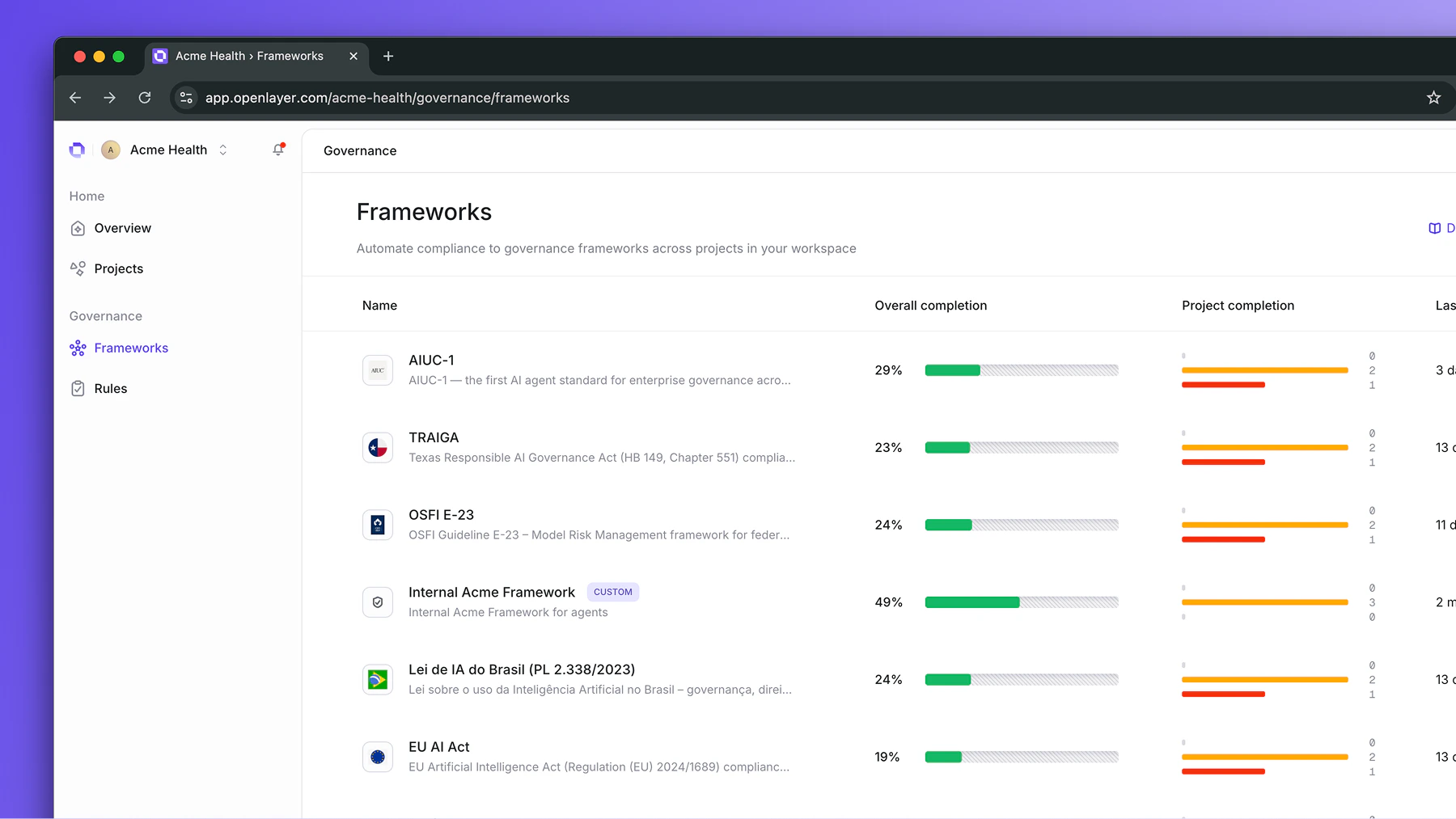
Navigate to **Governance > Frameworks**.
Each framework shows two metrics:
* **Overall completion** — the aggregate compliance percentage across all rules and all projects
* **Project completion** — a stacked bar showing a histogram of project completions
 ## Drilling into a framework
Click any framework to open its **Overview** tab. Here you'll see:
* **Workspace completion** — the overall percentage across all scoped projects
* **Platform rules** completion — how teams are doing on the automated rules
* **Evidence-based rules** completion — progress on document uploads and policy links
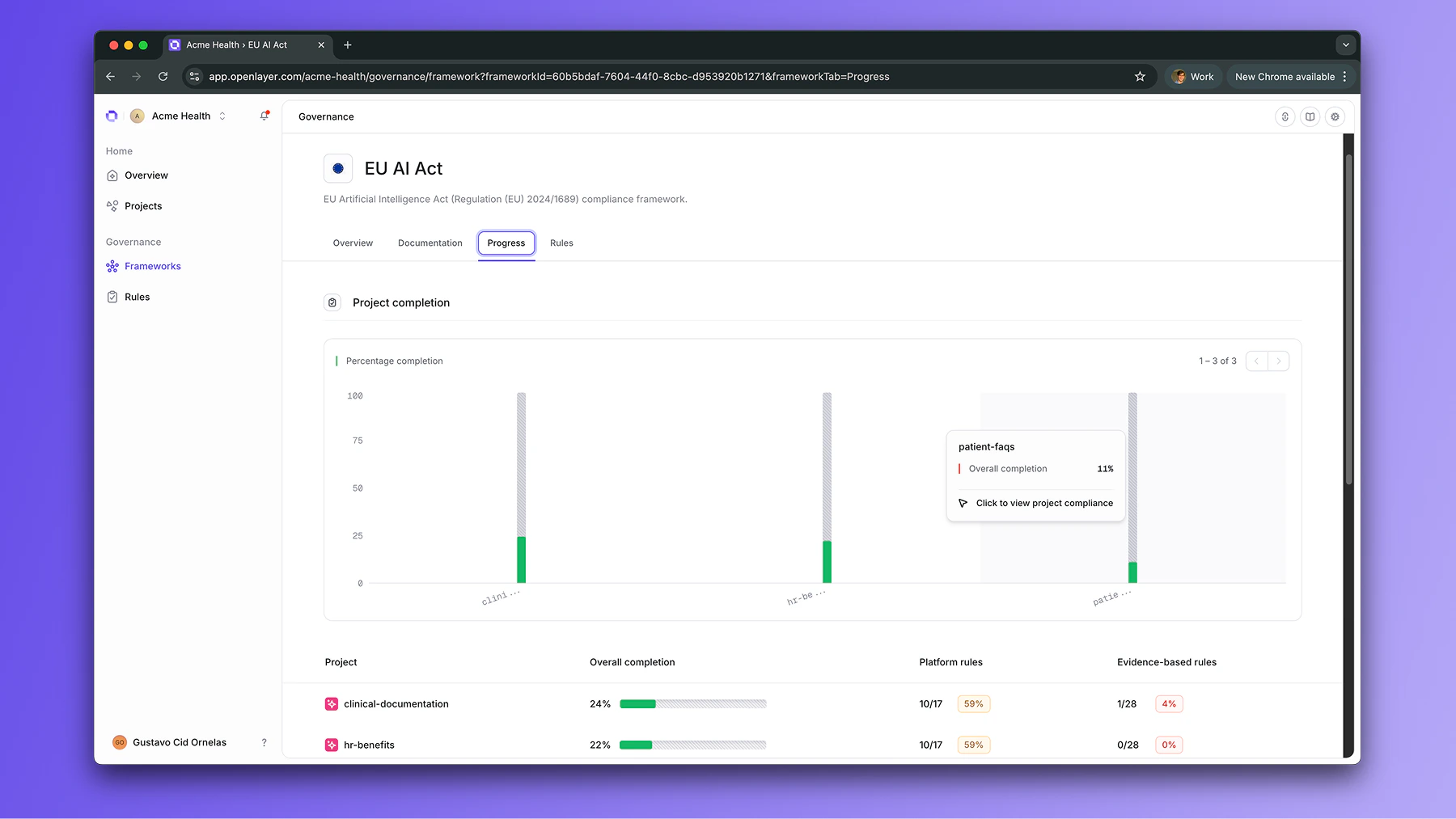
The **Progress** tab provides a per-project breakdown, showing exactly which projects are passing or failing and which specific rules are blocking them.
## Drilling into a framework
Click any framework to open its **Overview** tab. Here you'll see:
* **Workspace completion** — the overall percentage across all scoped projects
* **Platform rules** completion — how teams are doing on the automated rules
* **Evidence-based rules** completion — progress on document uploads and policy links
The **Progress** tab provides a per-project breakdown, showing exactly which projects are passing or failing and which specific rules are blocking them.
 ## Acting on the data
Click into any rule to see which projects are failing it and who the assigned owners are. You can then contact the responsible team members directly to unblock progress.
## Export a workspace report
On the framework page, open the framework options menu (⋯) and select **Export report**. The item sits after **Edit details** and appears only if you have the **Export framework evidence** permission.
The **Export report** modal describes the package:
> Download an audit-ready package for compliance review. The archive contains every evidence file uploaded for this framework, a markdown report of the framework's progress and the status of all controls, and CSV manifests with SHA-256 checksums.
A workspace export covers progress across all projects in this framework, including workspace-level controls. The banner shows the framework name and its description, or **Workspace-wide**.
Select **Export** to start the job, or **Cancel** to close the modal. A toast tracks progress (**Exporting framework report...**). When the zip is ready, it downloads automatically and a success toast confirms the download — there is no separate in-app notification. If the export fails, a toast reports **Failed to export framework report** or **Unable to export framework**.
To scope the same package to one project, export from that [project's framework page](/docs/governance/project-compliance) instead.
This documentation is built and hosted on [Mintlify](https://mintlify.com), a developer documentation platform.
## Acting on the data
Click into any rule to see which projects are failing it and who the assigned owners are. You can then contact the responsible team members directly to unblock progress.
## Export a workspace report
On the framework page, open the framework options menu (⋯) and select **Export report**. The item sits after **Edit details** and appears only if you have the **Export framework evidence** permission.
The **Export report** modal describes the package:
> Download an audit-ready package for compliance review. The archive contains every evidence file uploaded for this framework, a markdown report of the framework's progress and the status of all controls, and CSV manifests with SHA-256 checksums.
A workspace export covers progress across all projects in this framework, including workspace-level controls. The banner shows the framework name and its description, or **Workspace-wide**.
Select **Export** to start the job, or **Cancel** to close the modal. A toast tracks progress (**Exporting framework report...**). When the zip is ready, it downloads automatically and a success toast confirms the download — there is no separate in-app notification. If the export fails, a toast reports **Failed to export framework report** or **Unable to export framework**.
To scope the same package to one project, export from that [project's framework page](/docs/governance/project-compliance) instead.
This documentation is built and hosted on [Mintlify](https://mintlify.com), a developer documentation platform.