> ## Documentation Index
> Fetch the complete documentation index at: https://openlayer.com/docs/llms.txt
> Use this file to discover all available pages before exploring further.
# Tests configuration
> Learn how to configure tests in Openlayer
Each Openlayer test can be tailored to your needs. You can choose the data to run on,
adjust thresholds, tweak parameters, and more.
Most options have sensible defaults, so setup is usually minimal.
This page walks you through all available configurations.
 ## Configurations
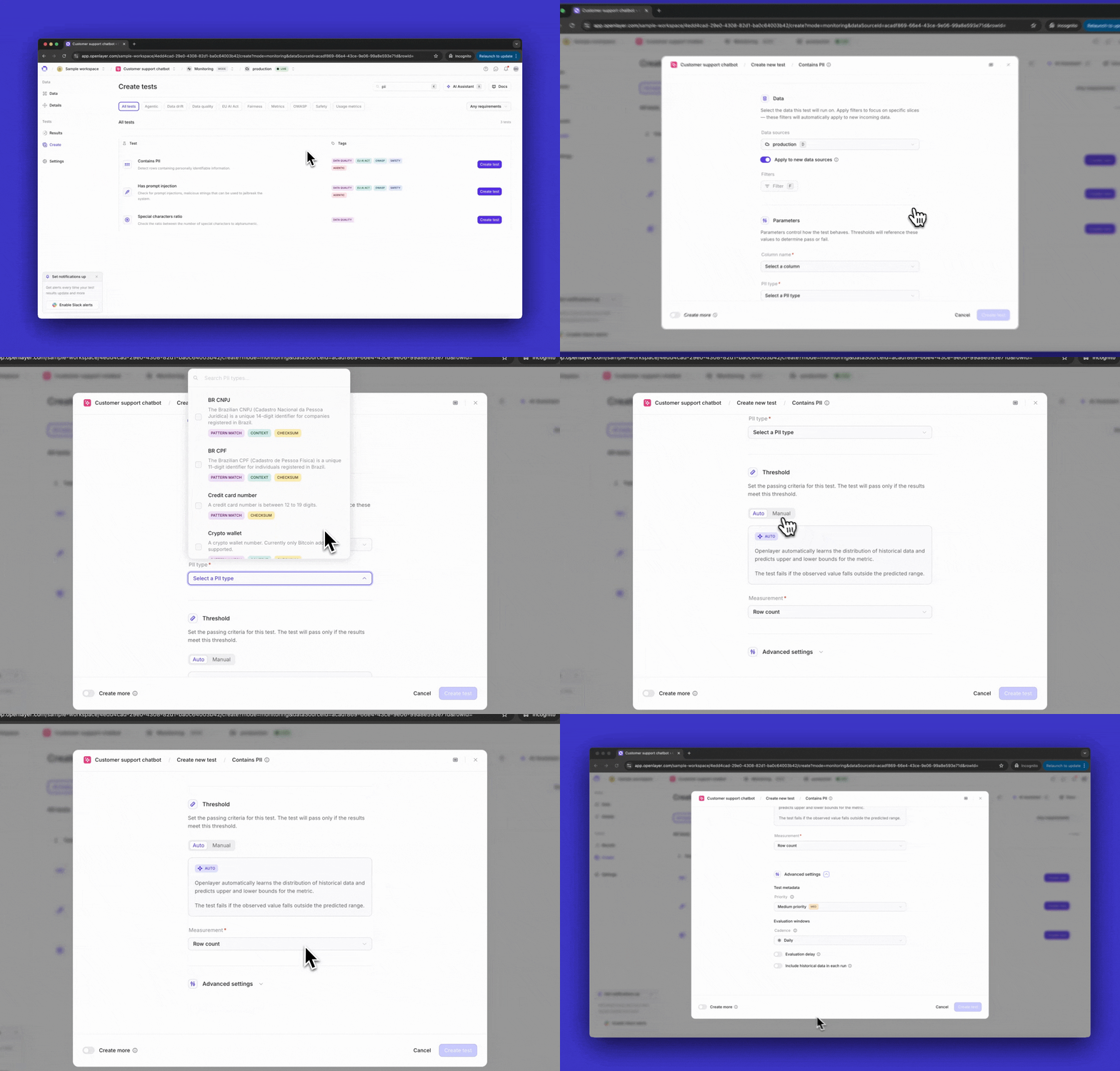
The configurations available are:
The "**Data**" section allows you to select the data on top of which this test will run.
In [monitoring mode](/docs/monitoring/overview), it means choosing among your data
sources (e.g., production data, staging data, etc.) In
[development mode](/docs/development/overview), it means selecting among your datasets
(e.g., training, validation, etc.)
You can also apply filters to narrow the test to specific slices of the data, and
turn on **Apply to new data sources** so the test covers data sources you connect
later. When you fill in a filter, the value picker suggests values from your data —
see [Filter value suggestions](#filter-value-suggestions).
To test or filter on one key inside a structured input or output instead of the
whole column, define a [custom column](/docs/monitoring/custom-columns) for it.
In monitoring mode, the section also holds the **Evaluation windows** settings: the
**Cadence** the test runs on (**Scheduled** or **Manual**), plus the
**Evaluation delay**, **Include historical data in each run**, and **Anchor
evaluation windows** toggles. See
[Evaluation and delay windows](/docs/monitoring/evaluation-and-delay-windows) for details.
Some tests include configurable parameters that control their behavior.
For example, a test such as the [PII detection test](/docs/tests/catalog/contains-p-i-i)
lets you specify which type of PII to detect (e.g., credit card numbers, social security numbers, etc.)
[Custom metrics](/docs/tests/custom-metrics) can also declare their own configurable
parameters. See [Configurable parameters](/docs/tests/custom-metrics#configurable-parameters)
for details on how to define them.
Refer to the specific test page in the [Catalog](/docs/tests/overview) for details
on its parameters.
For [LLM-as-a-judge](/docs/tests/catalog/l-l-m-rubric-threshold) tests, the
**Judge settings** hold the judge model and the sampling controls that bound how much
data the judge scores: **Sample size (%)** (100 by default), **Data limit (rows)**
(50 by default), and the **Sampling method** (for example, Random). You can set the
same controls for every test in the project under **Settings** →
**LLM-as-a-judge**.
The "**Threshold**" section allows you to define the condition for the test to pass.
On the **Manual** tab, you pick a **Measurement**, an **Operator**, and a
**Threshold** value — saying, for example, that the test passes if the metric is
greater than 0.5.
In [monitoring mode](/docs/monitoring/overview), most tests also offer an **Auto** tab.
With automatic thresholds, Openlayer automatically learns the distribution of
historical data and predicts upper and lower bounds for the metric. The test fails if
the observed value falls outside the predicted range.
Automatic thresholds are directional: choose **Both bounds** to fail on either side of
the predicted range, or **Upper only** or **Lower only** to fail on one side only —
useful when a move in a single direction is what concerns you, such as a rising cost.
The "**Advanced settings**" section holds the test metadata. Here's where you set
the test's **Priority**.
Cadence, delays, and anchoring live in the "**Data**" section — see
[Evaluation and delay windows](/docs/monitoring/evaluation-and-delay-windows).
## Filter value suggestions
When you filter a test on a column, the value picker suggests values Openlayer has already
seen in that column, so you can select a value instead of typing it from memory. Every
filter value picker can show these suggestions, not just
[semantic search filters](/docs/tests/semantic-search-filters), and the kind of comparison you
are making determines which values it suggests — whether you are matching on equality,
membership, contains, or an ordering comparison. The same suggestions appear when you
filter monitoring records: the **Records** table's filter prompts you to "Enter value...",
then lists matching values under "In the last 30 days" with each value's count beside it.
Each suggested value carries a count tag. Hover it to see how many rows matched, as in
"12 matches found in recent data", together with the note "Suggestions are drawn from a
recent sample of rows, so the full dataset may contain more matches." Read the count as a
signal of whether a value is worth filtering on rather than as an exact total.
Columns with many distinct values do not list suggestions up front. The picker asks you to
"Type to search values" instead, and looks up matching values as you type.
## Pausing tests
In [monitoring mode](/docs/monitoring/overview), you can pause tests when you don't want them to
compute results — for example, while you are replaying data or waiting on an upstream fix.
Open the overflow menu on a test row and select **Pause**.
While tests are paused, the tests list shows the banner "Tests are paused. You can still create
tests, but they will not compute results." Select **Unpause** in the banner to start receiving
test results again.
This documentation is built and hosted on [Mintlify](https://mintlify.com), a developer documentation platform.
## Configurations
The configurations available are:
The "**Data**" section allows you to select the data on top of which this test will run.
In [monitoring mode](/docs/monitoring/overview), it means choosing among your data
sources (e.g., production data, staging data, etc.) In
[development mode](/docs/development/overview), it means selecting among your datasets
(e.g., training, validation, etc.)
You can also apply filters to narrow the test to specific slices of the data, and
turn on **Apply to new data sources** so the test covers data sources you connect
later. When you fill in a filter, the value picker suggests values from your data —
see [Filter value suggestions](#filter-value-suggestions).
To test or filter on one key inside a structured input or output instead of the
whole column, define a [custom column](/docs/monitoring/custom-columns) for it.
In monitoring mode, the section also holds the **Evaluation windows** settings: the
**Cadence** the test runs on (**Scheduled** or **Manual**), plus the
**Evaluation delay**, **Include historical data in each run**, and **Anchor
evaluation windows** toggles. See
[Evaluation and delay windows](/docs/monitoring/evaluation-and-delay-windows) for details.
Some tests include configurable parameters that control their behavior.
For example, a test such as the [PII detection test](/docs/tests/catalog/contains-p-i-i)
lets you specify which type of PII to detect (e.g., credit card numbers, social security numbers, etc.)
[Custom metrics](/docs/tests/custom-metrics) can also declare their own configurable
parameters. See [Configurable parameters](/docs/tests/custom-metrics#configurable-parameters)
for details on how to define them.
Refer to the specific test page in the [Catalog](/docs/tests/overview) for details
on its parameters.
For [LLM-as-a-judge](/docs/tests/catalog/l-l-m-rubric-threshold) tests, the
**Judge settings** hold the judge model and the sampling controls that bound how much
data the judge scores: **Sample size (%)** (100 by default), **Data limit (rows)**
(50 by default), and the **Sampling method** (for example, Random). You can set the
same controls for every test in the project under **Settings** →
**LLM-as-a-judge**.
The "**Threshold**" section allows you to define the condition for the test to pass.
On the **Manual** tab, you pick a **Measurement**, an **Operator**, and a
**Threshold** value — saying, for example, that the test passes if the metric is
greater than 0.5.
In [monitoring mode](/docs/monitoring/overview), most tests also offer an **Auto** tab.
With automatic thresholds, Openlayer automatically learns the distribution of
historical data and predicts upper and lower bounds for the metric. The test fails if
the observed value falls outside the predicted range.
Automatic thresholds are directional: choose **Both bounds** to fail on either side of
the predicted range, or **Upper only** or **Lower only** to fail on one side only —
useful when a move in a single direction is what concerns you, such as a rising cost.
The "**Advanced settings**" section holds the test metadata. Here's where you set
the test's **Priority**.
Cadence, delays, and anchoring live in the "**Data**" section — see
[Evaluation and delay windows](/docs/monitoring/evaluation-and-delay-windows).
## Filter value suggestions
When you filter a test on a column, the value picker suggests values Openlayer has already
seen in that column, so you can select a value instead of typing it from memory. Every
filter value picker can show these suggestions, not just
[semantic search filters](/docs/tests/semantic-search-filters), and the kind of comparison you
are making determines which values it suggests — whether you are matching on equality,
membership, contains, or an ordering comparison. The same suggestions appear when you
filter monitoring records: the **Records** table's filter prompts you to "Enter value...",
then lists matching values under "In the last 30 days" with each value's count beside it.
Each suggested value carries a count tag. Hover it to see how many rows matched, as in
"12 matches found in recent data", together with the note "Suggestions are drawn from a
recent sample of rows, so the full dataset may contain more matches." Read the count as a
signal of whether a value is worth filtering on rather than as an exact total.
Columns with many distinct values do not list suggestions up front. The picker asks you to
"Type to search values" instead, and looks up matching values as you type.
## Pausing tests
In [monitoring mode](/docs/monitoring/overview), you can pause tests when you don't want them to
compute results — for example, while you are replaying data or waiting on an upstream fix.
Open the overflow menu on a test row and select **Pause**.
While tests are paused, the tests list shows the banner "Tests are paused. You can still create
tests, but they will not compute results." Select **Unpause** in the banner to start receiving
test results again.
This documentation is built and hosted on [Mintlify](https://mintlify.com), a developer documentation platform.